AI materials for Unreal Engine. One surface or a whole pack.
Turn a surface brief, or your own texture photo, into PBR textures and an Unreal material recipe. Compare alternatives, adjust exposed parameters and bring the materials you choose into your project through Cosindra.
Describe one material in as much detail as you need. A long prompt still produces one material.
Example brief
“A colorful road-playmat printed on soft woven carpet, with roads, houses and gardens. Top-down, seamless, no baked lighting.”
One patterned carpet material — not separate road, house and grass materials.
Variations
Paid plans
2 or 4 materials
Explore the same idea.
Generate alternative takes on one brief, then compare their surface details in the live preview.
Example brief
“Rusty sci-fi metal panels with scratches, dark paint and orange corrosion.”
Different takes on the same metal-panel brief.
Material Pack
Paid plans
2–8 materials
Build a set of surfaces.
Use a shared batch brief for different materials, or write a separate prompt card for each surface.
Example brief
“An abandoned research station needs corroded steel wall panels, cracked concrete floors and worn rubber walkway mats.”
Review the proposed steel, concrete and rubber briefs, edit them, then generate. Numbering is optional.
From image
Paid plans
1 material
Already have the texture? Make it a material.
Upload a flat photo or scan of one surface and choose the square to use. It becomes the Base Color; MaterialForge adds Normal, Roughness and AO maps made for that surface type and writes the Unreal material.
Example image
A head-on phone photo of a mossy cobblestone street, evenly lit, with no sky or horizon.
1 credit per material, or 2 with AI relief maps. Lighting, shadows and perspective in the photo stay as they are.
Repaint with a prompt
All plans · first repaint free
Your own .glb
Give your model a new look from one sentence.
Open Paint a model in the product bar, open your model and describe the look. MaterialForge repaints the base colour of every part with UVs, consistent from every side, and keeps the normal and roughness maps. Only 14 flat views of the model are sent; the .glb stays in your browser.
Your first repaint is free; after that 4 credits, refunded if it does not line up with your model. Adjust roughness, metallic and tint in the Surface tab, then save the look or download the GLB.
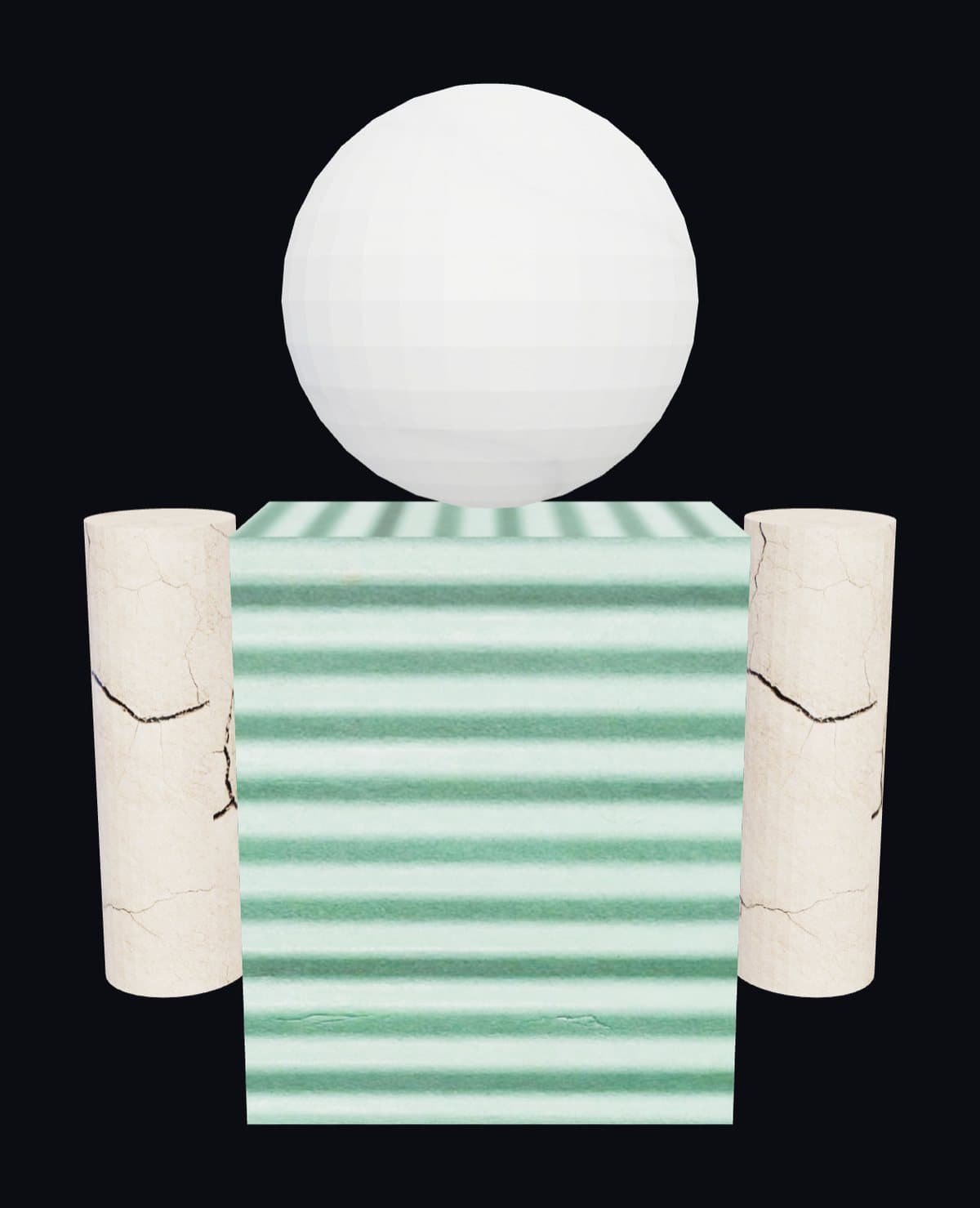
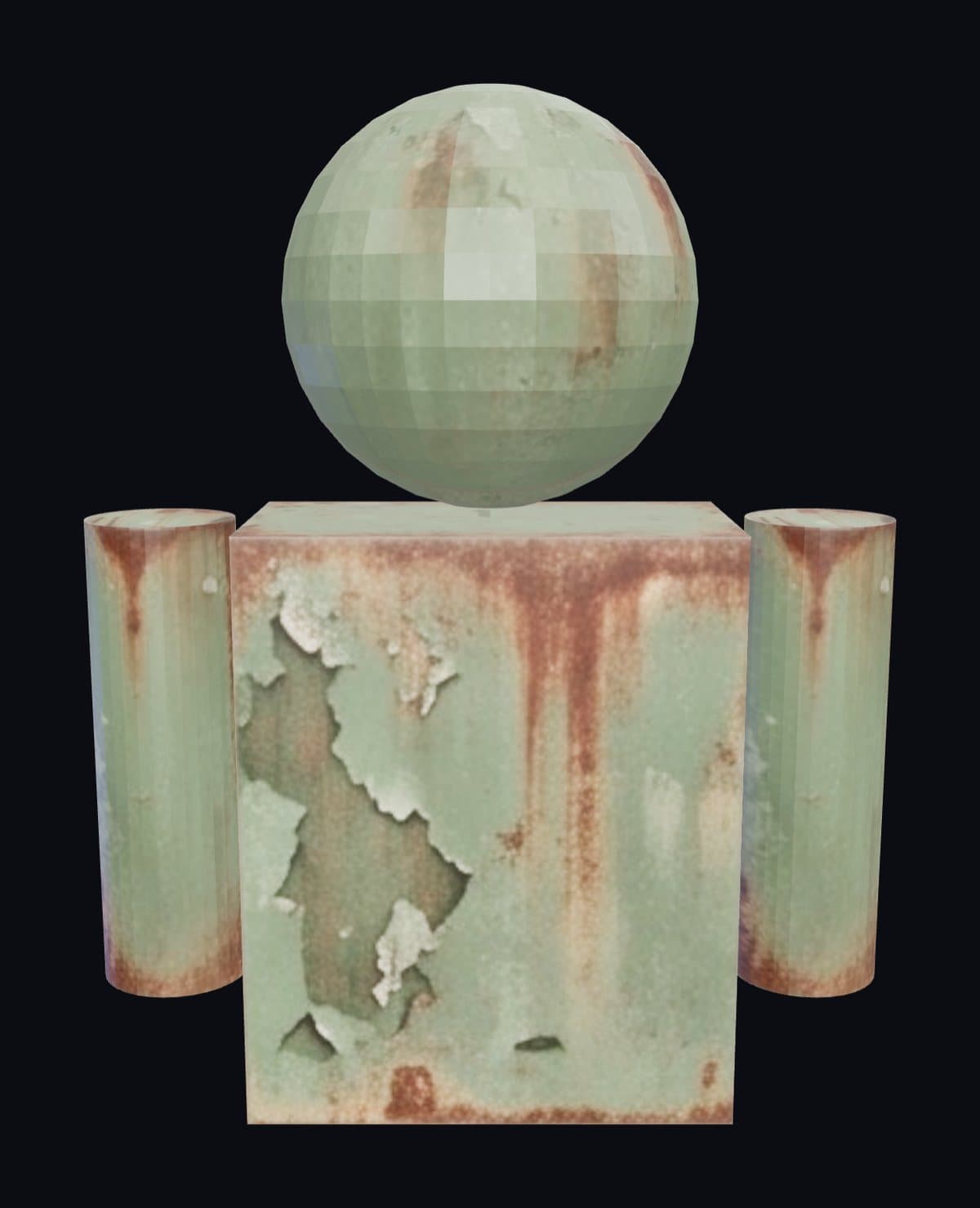
The prompt “weathered steel with peeling military-green paint, scratches and rust streaks”One result, as it came back; the same views, before and after.
Materials are not maps. Each textured result has Base Color, Normal, Roughness and AO maps. A pack is a set of separate materials; procedural recipes may not need texture maps at all.
Inspect and compare
View the selected material on a sphere, cube or plane. Compare your results before choosing which ones belong in your project.
Adjust without a new render
Change exposed recipe parameters for free. For a new visual direction, Refine uses your instruction in a fresh, paid generation.
Keep it. Use it.
Save each chosen material to your private library. Download the successful pack results together, or apply them through the desktop app and UE plugin.
Before you generate
Does a long prompt automatically create a Material Pack?
No. You choose Single, Variations or Material Pack. In Material Pack, Prepare material list turns a scene brief into a proposed list to review and edit before generating. Numbering is optional; Separate cards also lets you write exact briefs yourself. A detailed description of one printed carpet is still one material. Lists are not padded to fill a count; packs support up to eight distinct materials. Ready results become selectable while the remaining materials generate.
Are four PBR maps the same as four materials?
No. One textured material includes Base Color, Normal, Roughness and Ambient Occlusion (AO) maps, plus its Unreal material recipe. A four-material pack contains four separate results, each with its own recipe and maps where needed. Procedural results can be recipe-only.
How are the PBR maps made?
Standard renders a tileable Base Color, then derives Normal, Roughness and AO for the kind of surface you described: a printed design such as a road playmat stays flat colour, bricks and tiles keep their mortar recessed, and roughness follows the finish your brief asks for. Pro Engine adds an AI relief pass — an estimated normal map and height-based AO — for deeper relief on stone, brick, wood and cracked ground. Pro Engine renders all four maps (Base Color, Normal, Roughness and AO) at 2048x2048 (2K); Standard renders them at 1024x1024. Normal maps use the DirectX convention Unreal expects.
What do generation, Pro Engine and failed results cost?
Standard generation costs 4 credits per material. Pro Engine adds 5, making it 9 per material. Pro Engine materials have a 2048x2048 (2K) texture and maps; Standard materials are 1024x1024. Four results cost 16 or 36 credits respectively; the full quote is shown before you start. Failed pack results are refunded individually. There is no additional draft or planner charge. Retrying a failed result is a new, separately charged generation. From image costs 1 credit per material, or 2 with AI relief maps. Repainting a model costs 4 credits; every account’s first repaint is free.
Can I turn my own photo into a material?
Yes, on paid plans. Choose From image, upload a PNG, JPEG or WebP of one surface (at least 512 × 512 px, up to 15 MB) and pick the square to use. Your image becomes the Base Color as it is; MaterialForge adds Normal, Roughness and AO maps for its surface type and writes the Unreal material. It costs 1 credit, or 2 with AI relief maps. Lighting, shadows and perspective in the photo are not removed, so flat, evenly lit, head-on shots work best. Images with transparent areas are refused before anything is charged; use an opaque texture that fills the frame. If the image is not a usable surface, such as a whole object, a scene or a person, the job stops and the credits are refunded.
What can I change for free?
Adjust Parameters changes the connected values exposed by a recipe, such as tint or UV tiling, and Surface Lab edits the texture maps themselves: relief depth, roughness and its variation, and ambient occlusion. Both preview live, spend no credits and save as a new result; the original stays unchanged. A saved preset can also be applied to several materials at once; only materials with a matching graph change, and each becomes its own new result. New Variation and Refine start a fresh full generation at 4 credits, or 9 with Pro Engine; Refine is not an image-preserving edit.
Can I preview a material on my own model?
Yes, for free. Choose Paint a model in the product bar and pick a self-contained .glb file, up to 50 MB and 1.5 million triangles. It opens in your browser and is not uploaded unless you choose Save asset for later, which keeps a private copy in your account to reopen later (3 models on Starter, 20 on paid plans). Click a part, or pick its material slot, to give it the selected material; parts that share a slot change together, as they do in Unreal. Switch between Original and Look to compare, and use Save look to keep named looks such as New or Worn with the asset; their materials are saved to your library so a look reopens the same way. Parts without UV coordinates cannot show a material. To resize the pattern, change UV tiling in Adjust. Download GLB saves a copy of your model with the look as glTF PBR (maps, tint and UV tiling per slot, without Unreal graph effects beyond those), ready for Blender, Unity, Godot or a web viewer; it is a file download, so Starter uses its one free download and paid plans download freely. Your original file is never changed, and materials are not assigned to your asset in Unreal.
Can MaterialForge repaint my whole model from a description?
Yes, on every plan, and the first one is free. Choose Paint a model in the product bar, open your model, choose Repaint with a prompt and describe the new look, such as weathered steel with peeling green paint. Before anything is sent you see the exact image that leaves your browser: flat views of your model from 14 directions. Your .glb file is not uploaded. An image model repaints those views and MaterialForge projects the paint back onto the base colour of every part with UV coordinates, so the look stays consistent from every side; normal and roughness maps stay as they are. Your first repaint is free; after that a repaint costs 4 credits, refunded automatically if the result does not line up with your model (the free one is not used up either). Parts whose UVs repeat a texture repeat the new paint too, and parts without UVs keep their look. Download GLB writes the repaint into a copy of your model, and Download textures gives you the base colour PNGs. The Surface tab adjusts roughness, metallic, normal strength and a tint over the look, for every part or one slot; those settings go into the GLB and are saved with the look. Save look keeps the repaint with your saved model, so the look reopens repainted; until you save, the repaint is kept for 30 minutes so a reload can restore it for free.
Can a new material match a set I already have?
Yes, on paid plans. Give a collection a shared style in Account → Materials or in the workbench: palette, scale, wear and notes. In Single mode, choose Add to a collection; the new material is generated with that style and knows the collection's existing materials, and only the new material is charged (4 credits, or 9 with Pro Engine). To make one material differ on purpose, fill in the difference and say why; the collection keeps its style. Add the result to the collection when you are happy with it. In Paint a model, Paint from a collection lets you choose a collection material for each slot. A shared style makes results more consistent, not identical.
Does Save keep the whole pack?
Save keeps only the selected material in your private account library. Select and save each result you want to keep. Unsaved texture-based results have a recovery window of up to 24 hours in Account → Materials, where you can save them without regenerating. Saving one result does not preserve the other pack results.
Can I download or apply the whole pack in Unreal Engine?
Download Pack includes the successful results in numbered folders with recipes, available maps and a pack manifest. Apply Pack in UE5 uses the Cosindra desktop app and Unreal plugin to bring successful materials into your project. Applying costs no extra credits on any plan. File downloads require a paid plan after Starter’s one lifetime free asset download, shared across products. Download or save textured results before their recovery window expires.
WorldWeaver can identify suitable surfaces in its Material Needs list. Where enabled, its optional paid material workflow lets you download a world and its successful materials together.